
Blog

  • Mesh vs Extender: What Actually Fixes WiFi Problems?

    Introduction

    If you’re trying to improve your WiFi, you’ve probably seen two options: mesh systems and extenders. Choosing the wrong one can waste time and money.


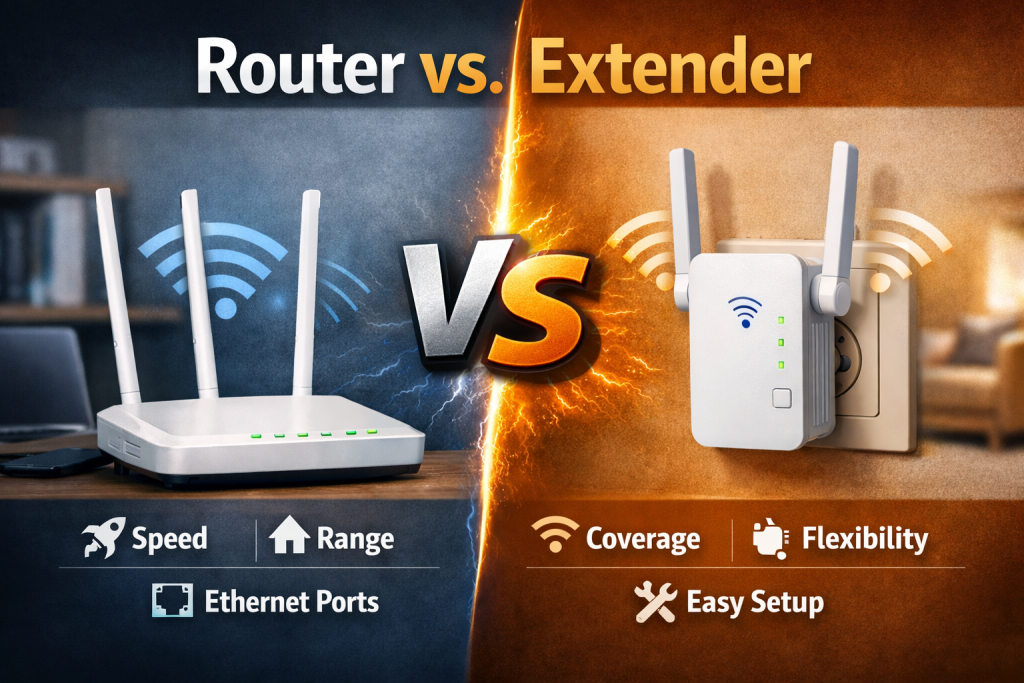
    What Is a WiFi Extender?

    • Extends existing signal
    • Best for one problem area
    • Cheaper option

    What Is a Mesh System?

    • Multiple units working together
    • Covers entire home
    • More reliable

    Key Differences

    FeatureExtenderMesh
    CoverageSmall areaWhole home
    PerformanceCan drop speedStable
    SetupSimpleSlightly more setup
    CostLowHigher

    Which Should You Choose?

    Choose extender if:

    • Only one room has issues

    Choose mesh if:

    • Multiple rooms have weak signal
    • You have a large or multi-story home

    Final Thoughts

    Extenders are a quick fix. Mesh systems are a long-term solution.

  • How to Fix Weak WiFi Signal in Your Bedroom

    Introduction

    A weak WiFi signal in your bedroom can make streaming, browsing, and working frustrating. This usually happens due to distance, walls, or poor router placement.


    Why It Happens

    • Bedroom is far from router
    • Walls block signal
    • Router is poorly positioned

    How to Fix It

    Step 1: Move Your Router

    Closer to the center of your home.


    Step 2: Raise It

    Place it on a shelf—not the floor.


    Step 3: Use the Right Band

    • 2.4GHz = better range
    • 5GHz = faster but shorter

    Step 4: Add an Extender

    Best for fixing one room only.


    Step 5: Upgrade to Mesh

    Best long-term solution for multi-room coverage.


    Final Thoughts

    Most bedroom WiFi problems come down to signal strength—not internet speed.


  • Why Does My WiFi Keep Disconnecting Randomly? (Fix It Fast)

    Introduction

    If your WiFi randomly disconnects throughout the day, it can be incredibly frustrating—especially during streaming, work, or gaming. The good news is this problem is usually fixable once you identify the cause.


    Common Causes of WiFi Disconnects

    1. Router Overload

    Too many devices connected at once can overwhelm your router.

    2. Interference

    Nearby networks, walls, and electronics can disrupt your signal.

    3. Outdated Firmware

    Routers need updates just like phones and computers.

    4. ISP Instability

    Sometimes the issue is your internet provider, not your setup.


    How to Fix It

    Step 1: Restart Your Router

    This clears temporary issues and reconnects your network.


    Step 2: Move Your Router

    Keep it:

    • Central
    • Elevated
    • Away from electronics

    Step 3: Update Firmware

    Log into your router and check for updates.


    Step 4: Reduce Connected Devices

    Disconnect devices you’re not using.


    Step 5: Upgrade If Needed

    If your router is 4–5+ years old, it may not handle modern demand.


    Final Thoughts

    Random disconnects are usually caused by overload or interference—not just “bad internet.”

  • Why Is My WiFi Slow Upstairs? (And How to Fix It Fast)

    Introduction

    If your WiFi works perfectly downstairs but slows to a crawl upstairs, you’re not alone. This is one of the most common home network problems—and the good news is it’s usually easy to fix once you understand the cause.


    Why WiFi Is Slower Upstairs

    There are a few main reasons your WiFi struggles on upper floors:

    1. Distance from the Router

    WiFi signal weakens the farther it travels. If your router is downstairs, the signal has to travel through floors and walls to reach upstairs rooms.

    2. Floor and Wall Interference

    Materials like wood, brick, concrete, and metal can block or weaken your signal. Floors are often thicker than walls, making the problem worse.

    3. Poor Router Placement

    If your router is tucked in a corner, closet, or behind furniture, your signal is already weak before it even starts traveling upstairs.

    4. Weak or Outdated Router

    Older routers simply don’t have the strength or range to cover larger or multi-story homes.


    How to Fix Slow WiFi Upstairs

    Follow these steps in order before buying anything new.


    Step 1: Move Your Router (Biggest Impact)

    Try placing your router:

    • In a central location
    • Off the ground (on a shelf or desk)
    • Away from walls and obstructions

    👉 Even small moves can dramatically improve signal strength upstairs.


    Step 2: Adjust Router Antennas

    If your router has antennas:

    • Point one vertical
    • Point one horizontal

    This helps distribute signal across different directions and floors.


    Step 3: Reduce Interference

    Keep your router away from:

    • Microwaves
    • TVs
    • Metal objects
    • Thick walls

    Also avoid placing it inside cabinets or closets.


    Step 4: Switch to 5GHz vs 2.4GHz (or vice versa)

    • 2.4GHz = better range, slower speed
    • 5GHz = faster speed, shorter range

    Upstairs devices may perform better on 2.4GHz depending on distance.


    Step 5: Use a WiFi Extender (For One Area)

    If only one room is affected, a WiFi extender can help.

    👉 Place it halfway between your router and the upstairs problem area.


    Step 6: Upgrade to a Mesh System (Best Long-Term Fix)

    For larger or two-story homes, a mesh WiFi system is usually the best solution.

    It:

    • Covers multiple floors
    • Eliminates dead zones
    • Provides consistent speed everywhere

    Recommended Solution

    If you’ve tried basic fixes and still have issues, a mesh system is the most reliable upgrade for multi-story homes.

    👉 Look for systems designed for full-home coverage rather than single routers.


    Final Thoughts

    Most slow WiFi upstairs problems come down to placement, interference, or coverage limits—not just internet speed.

    Start with the simple fixes first. If needed, upgrade strategically instead of guessing.